> For the complete documentation index, see [llms.txt](https://docs.varialwallet.com/llms.txt). Markdown versions of documentation pages are available by appending `.md` to page URLs; this page is available as [Markdown](https://docs.varialwallet.com/whats-new.md).
# What's New
Highlights from Freighter browser extension releases 5.31.0 through 5.37.0. For later releases, see the [Freighter changelog](https://freighter.app/changelog).
## Release 5.37.0
### Collectibles
You can now add SEP-50 collectibles to your Freighter wallet on Mainnet, Testnet, and Futurenet. If your account is the owner of a collectible, click `Collectibles` in the Account view. Once you're in the Collectibles view, click the options icon on the right side of the screen. This will show you a dropdown with the option to `Add manually`. Clicking that will take you to a screen to input your collectible's contract address, as well as its token id. Once you've successfully done that, if your account is the owner of the collectible, you will now see it in your `Collectibles` view. You'll also be able to send it to another user, just as you would any payment, using the `Send` button.
### Memo checks
Freighter's Send flow now has enhanced memo requirement checking. If your destination needs a memo, we'll remind you to make sure your payment gets to where it's supposed to go. This is especially useful when you're sending payment to exchanges, which often require memos.
### Additional bugfixes and stability fixes
[Full changelog](https://github.com/stellar/freighter/releases/tag/5.37.0)
## Release 5.36.0
### Performance Improvements
We heard your feedback and in Release 5.36.0, we've made improvements to make Freighter faster and smoother than ever! We've made some updates to lazy load API requests and we've added even more caching to speed up your Freighter experience.
Side by side comparison of v5.35.0 and v5.36.0:
{% file src="/files/vkIHNtb15zxlSipDhxZE" %}
### Send and Swap Update
We've also updated the UX for the Send and Swap flows in Freighter to streamline the process. This means fewer clicks to send a payment or swap to a different asset.
### Copy Your Address
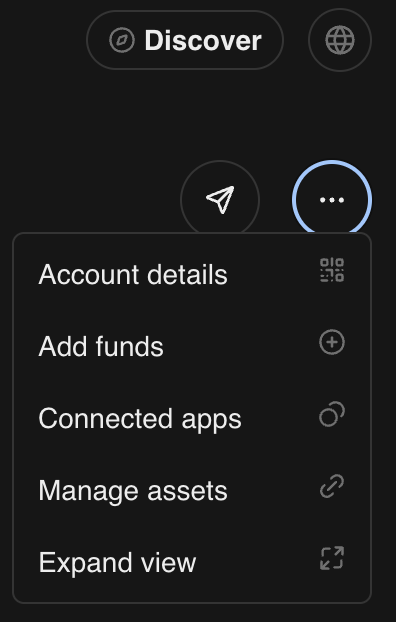
For your convenience, we now include a button to copy your address from your options dropdown.
### Additional bugfixes and stability fixes
[Full changelog](https://github.com/stellar/freighter/releases/tag/5.36.0)
## Release 5.34.0
### App-Wide Design system Update
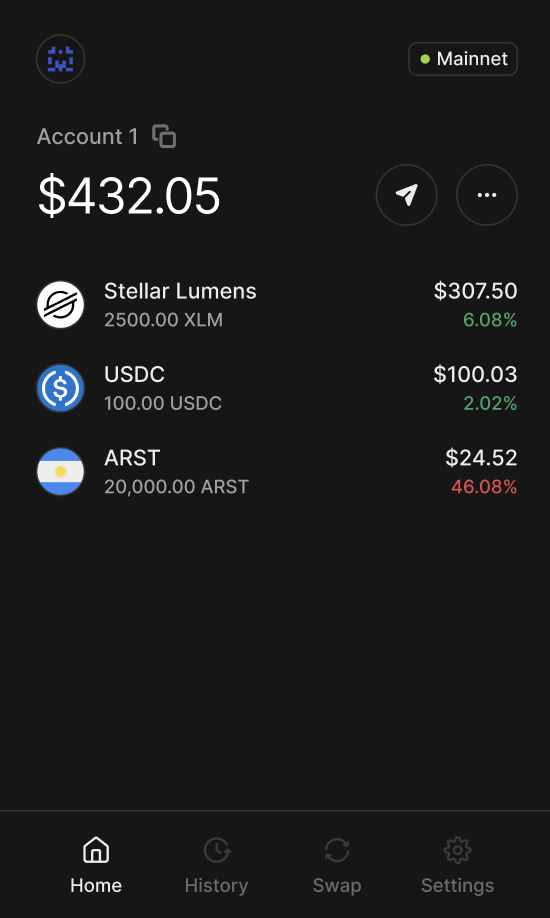
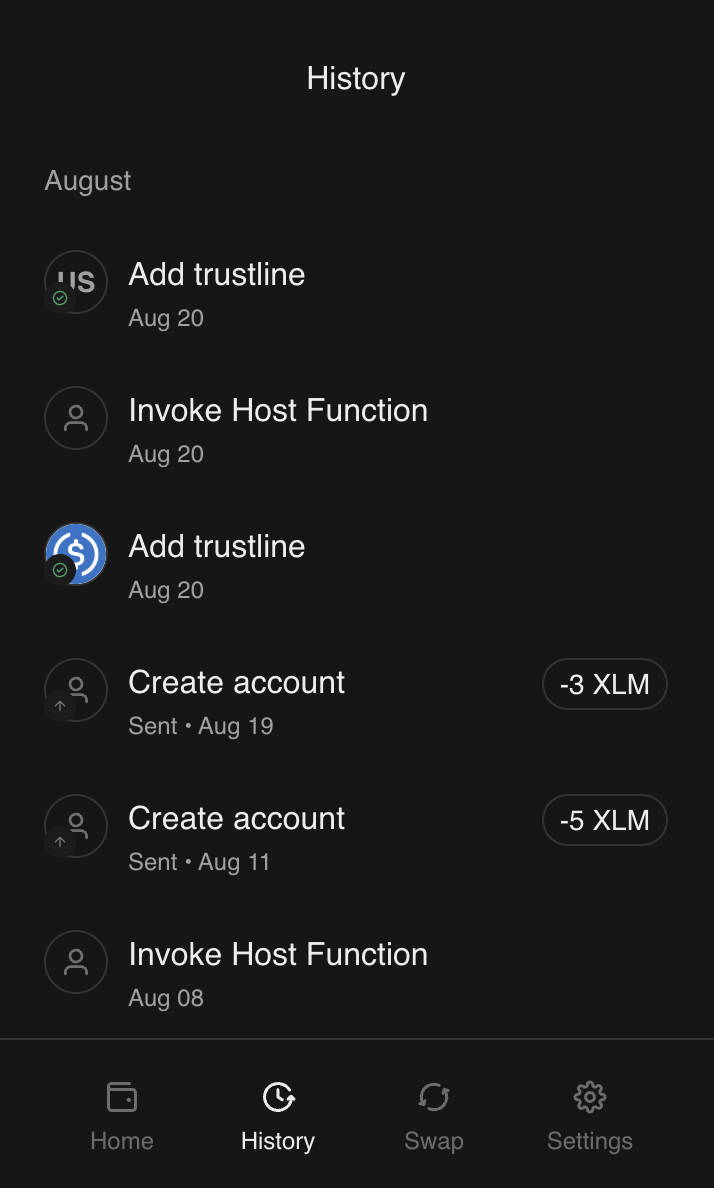
For this release, we've freshened up the design system, removed the nav bar at the bottom, and reorganized certain buttons.
Old Homescreen
New Homescreen
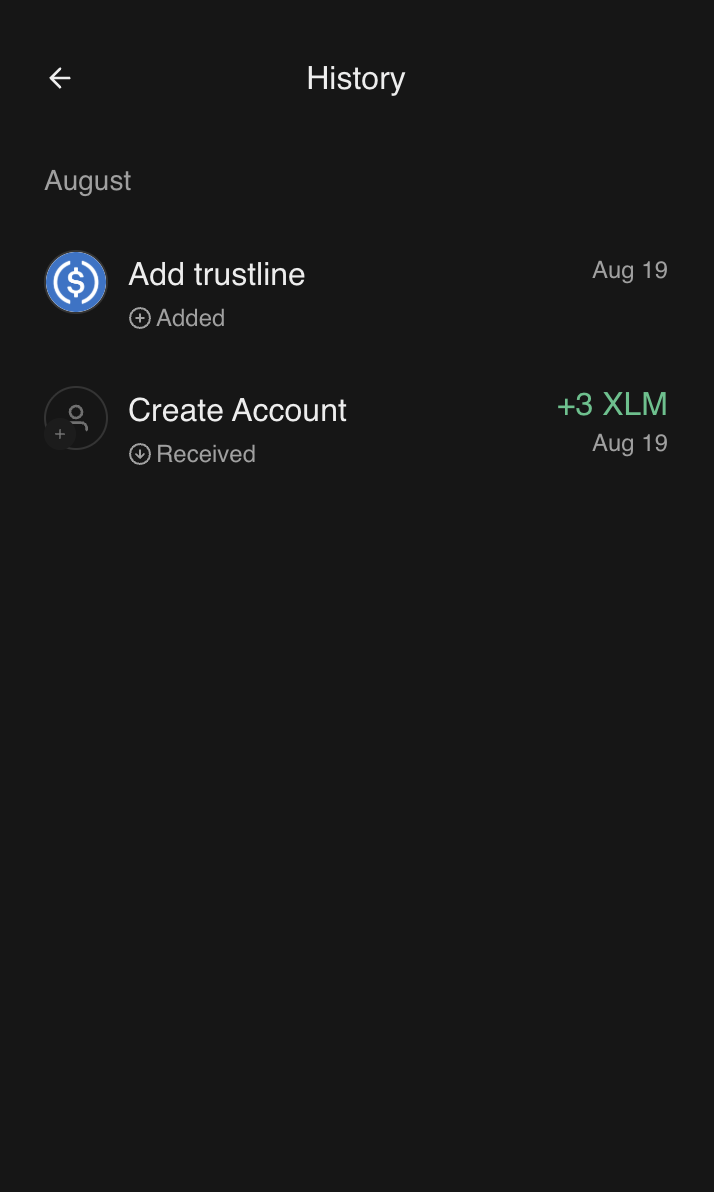
Old History Page
New History Page
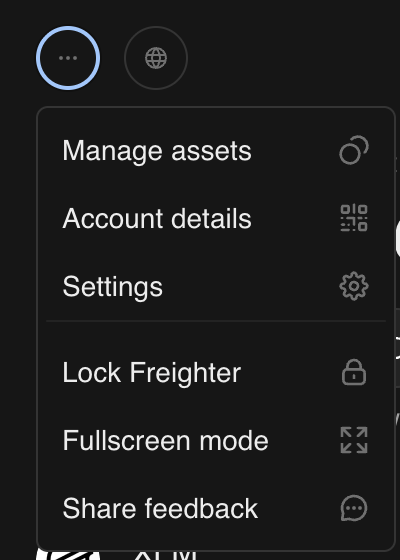
### Settings is now under the top left dropdown navigation
Old Settings Location
New Settings Location
### Secondary navigation is now in the top left dropdown
Old Secondary Nav Location
New Secondary Nav Location
### Implements SEP-53 handling for sign-message API
Learn more about SEP-53 message signing [here](https://github.com/stellar/stellar-protocol/blob/master/ecosystem/sep-0053.md).
[Full changelog](https://github.com/stellar/freighter/releases/tag/5.34.0)
## Release 5.33.0
### Discover
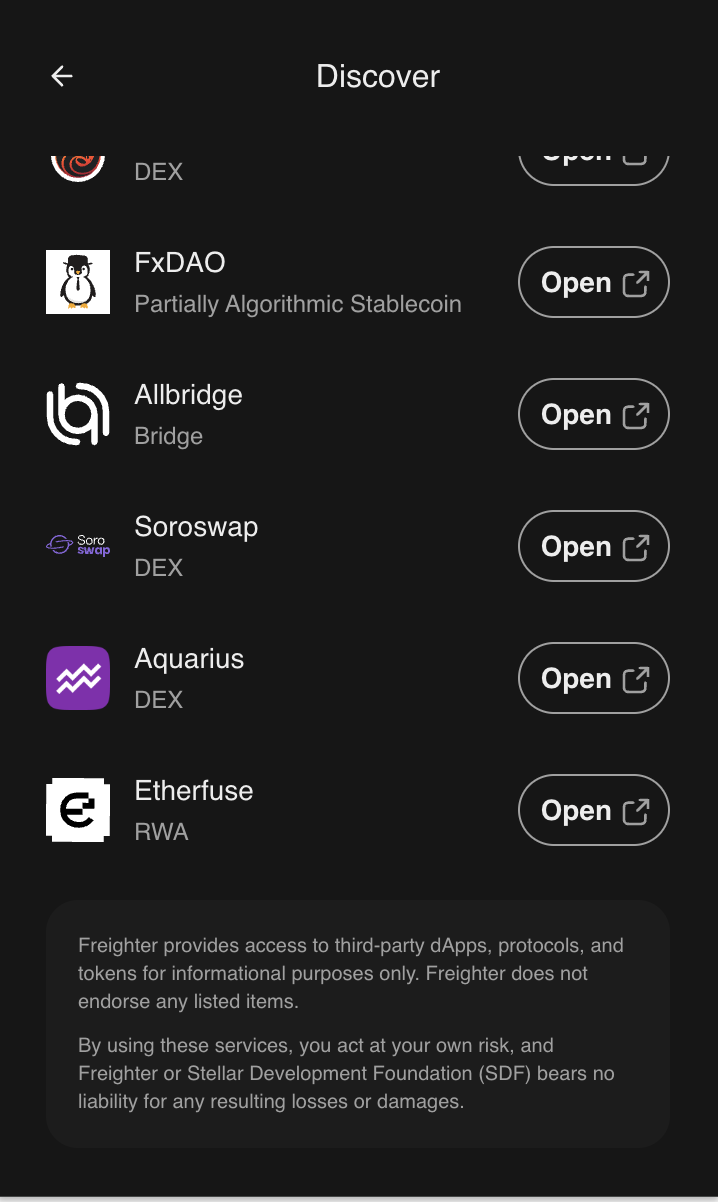
You can now find dapps to connect your Freighter wallet to from the `Discover` screen. Here, you'll find dapps that provide different services, like lending, DEXs, and bridging.
To access, simply click the `Discover` button on the home screen.
From here, you can click the `Open` button next to any protocol to navigate to the dapp.
### Filtering claimable balances
Many users have reported their Stellar accounts receive a good deal of claimable balance "spam" in their account history - claimable balances they have no intention of claiming. These often present themselves as a transaction containing many `create claimable balance` operations.
To filter out this noise and provide a better experience for users, Freighter now automatically hides these types of transactions for you. If you do want to engage with any of these, they still exist on your account. You can find them by visiting a block explorer like [stellar.expert](https://stellar.expert).
### Additional bugfixes and stability fixes
[Full changelog](https://github.com/stellar/freighter/releases/tag/5.33.0)
## Release 5.32.0
### Add Asset Unification
The "Add Asset" flow is now unified so that users do not have to select "Add Manually" in order to add custom tokens. You can now use the single search bar in order to search for issuers, domains, and contract IDs when looking for an asset to add to your balances screen.
### Improved Support for Asset Icons
Traditionally, you have only been able to see an asset's icon if it was correctly defined in [the asset's toml file](https://developers.stellar.org/docs/tokens/publishing-asset-info#sample-stellartoml) hosted on the asset's home domain.
Custom tokens have no corresponding toml file or home domain which meant there was no support for displaying a custom token's asset icon. We've expanded icon support by including icons defined in any [SEP 42 Stellar Asset List](https://github.com/stellar/stellar-protocol/blob/master/ecosystem/sep-0042.md) that is active in your wallet. This change will allow more asset icons to be available for Freighter assets and include custom tokens that are vetted by the community and added to the maintained asset lists.
### Failed Transaction in History
Your history previously only included transactions that were successful and included in the ledger. We've updated our history data to include failed transactions in order to give users a better view of the actions they attempt to take.
### Additional bugfixes and stability fixes
[Full changelog](https://github.com/stellar/freighter/releases/tag/5.32.0)
## Release 5.31.0
### Coinbase Onramp
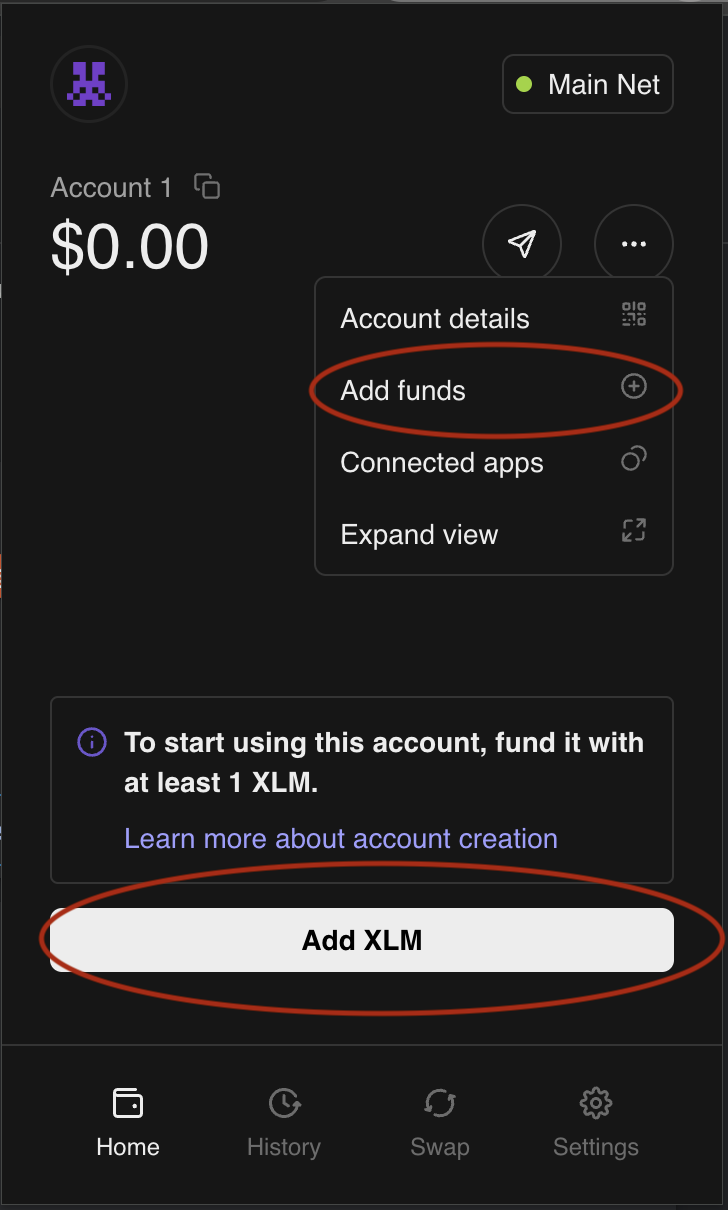
You can now fund your wallet directly from Freighter. To do so, first, make sure you are on Mainnet. Then, click on the `...` dropdown on the Account screen. You'll see a button labeled `Add funds`. This will bring you to a screen with a button labeled `Buy With Coinbase`. This button takes you to Coinbase where you can select any asset Coinbase offers. At checkout, you will find your Freighter address prefilled. Completing checkout will send the asset to your Freighter wallet.
If your account is unfunded, you can simply click the `Add XLM` button on the Account screen. This will take you to a screen where you can `Buy XLM With Coinbase`. This button will take you to Coinbase where `XLM` will be preselected for you and your Freighter address will be prefilled as the destination.
### Hide Assets
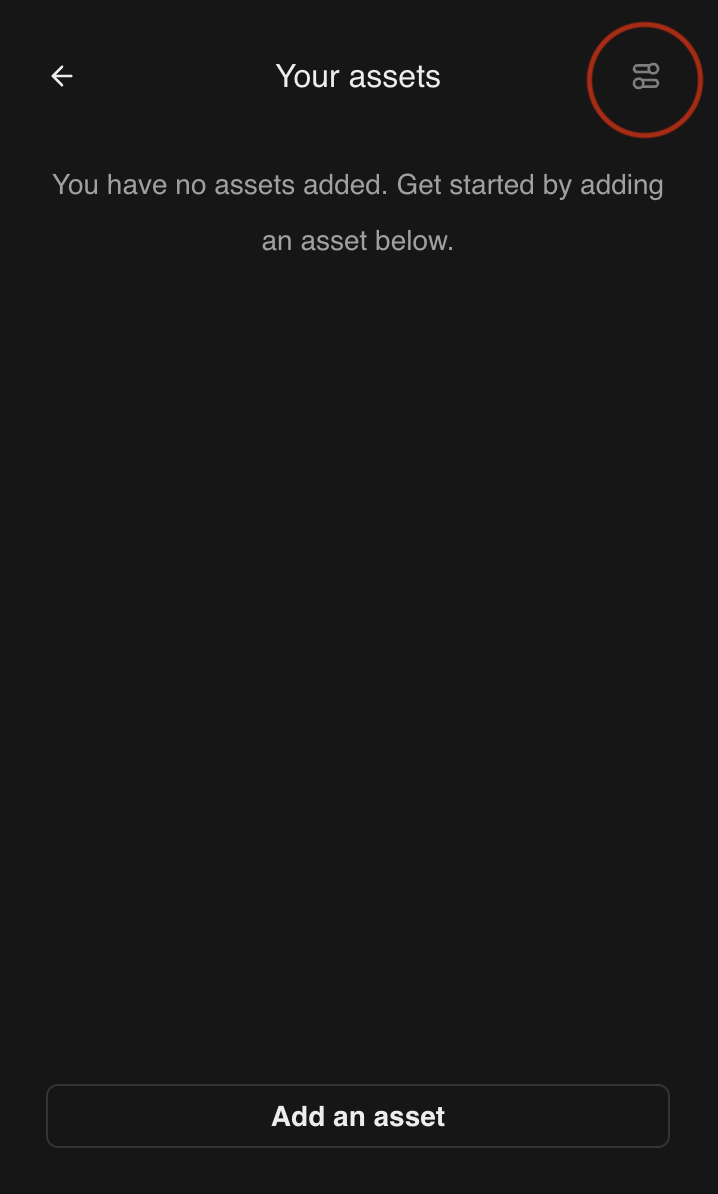
You can now choose to hide assets you own. Click the `...` dropdown and click `Manage assets` (when your account is funded). Here you will see a button in the top right corner where you can toggle assets. This is useful if you have many assets but only want to see a few that you care about.
### Paste Mnemonic Phrase
During onboarding, if you choose to import an account by mnemonic phrase, you can now paste your mnemonic phrase. If you paste the complete phrase into the first input, it will populate the rest of the inputs with each word.
Please note that when you do so, we will automatically clear your clipboard after successful paste. This is because keeping your mnemonic phrase (or secret key) in your clipboard is a vulnerable place that hackers may have access to. Because of that, we generally encourage users to never store sensitive information in their clipboard.
For more information:
* [Demonic vulnerability](https://www.halborn.com/disclosures/demonic-vulnerability)
* [StilachiRAT vulnerability](https://www.microsoft.com/en-us/security/blog/2025/03/17/stilachirat-analysis-from-system-reconnaissance-to-cryptocurrency-theft/)
### Security Improvements
We've made some changes to how users deal with connected apps in Freighter.
Previously, if you tried to sign a transaction/message/auth entry for a dapp that was NOT on your connected apps list, Freighter would present a warning message but still allow you to continue signing if you so choose. This design made sense from the perspective of reducing user friction and allowing people to sign things quickly.
As the ecosystem continues to evolve and grow, the Freighter team feels it would be best to start giving you a bit more security in this flow. Starting in this release, Freighter will automatically block you from signing a transaction/message/auth entry if the app is not on your connected apps list. The only way for you to sign for a dapp is to first go through the "connection flow" that the dapp should offer. Behind the scenes, the dapp will be using the `@stellar/freighter-api` methods `setAllowed` or `requestAccess` to do so. The goal here is to keep users from accidentally signing for a dapp that they do not intend to.
Also, previously, if you went through the aforementioned "connection flow", it would connect all of your Freighter addresses across ALL networks to an app. Again, this design made sense from the perspective of reducing user friction and allowing people to sign quickly.
Going forward, when you connect to a dapp, only the active keypair on the currently selected network will be connected to the app. If you want to sign using another one of your Freighter accounts, you will need to go through the connection flow for that address.
### Additional bugfixes and stability fixes
[Full changelog](https://github.com/stellar/freighter/releases/tag/5.31.0)
---
# Agent Instructions
This documentation is published with GitBook. GitBook is the documentation platform designed so that both humans and AI agents can read, navigate, and reason over technical content effectively. Learn more at gitbook.com.
## Querying This Documentation
If you need additional information that is not directly available in this page, you can query the documentation by asking a question.
Perform an HTTP GET request on the following URL with the `ask` and `goal` query parameters:
```
GET https://docs.varialwallet.com/whats-new.md?ask=&goal=
```
`ask` is the immediate question: it should be specific, self-contained, and written in natural language.
`goal` is what the user is ultimately trying to achieve, the reason they need the answer. Sharing it helps GitBook give you a better, more relevant answer. A goal is most helpful when it describes the outcome the user wants rather than restating the question. For example, with `ask=how do I create an API token`, a goal like `automate deployments from our CI pipeline` lets GitBook tailor the answer to that use case.
The response will contain a direct answer to the question and relevant excerpts and sources from the documentation.
Use this mechanism when the answer is not explicitly present in the current page, you need clarification or additional context, or you want to retrieve related documentation sections.